4 easy steps to exporting stems in Adobe Audition for Professional Online Mixing and Mastering Services.
- Go to the File.
- Choose Export.
- Multitrack Mixdown
- Entire session
The first thing you want to do is actually give it a name. You can then choose a location where to save your export files.
Save Settings:
- Format: WAVE PCM.
- Sample type: Same as Source
- New Sample Type: 44.1 khz
- Format settings: Wave Uncompressed
- Mixdown options: Master Stereo, Select by track each of then individually (voice mono, extra SFX, SFX mix, music mixdown), select bus as well.
- Check the 2 boxes under: yes
- Then hit Ok to start exporting.
...and it begins exporting individual stems of all these tracks.
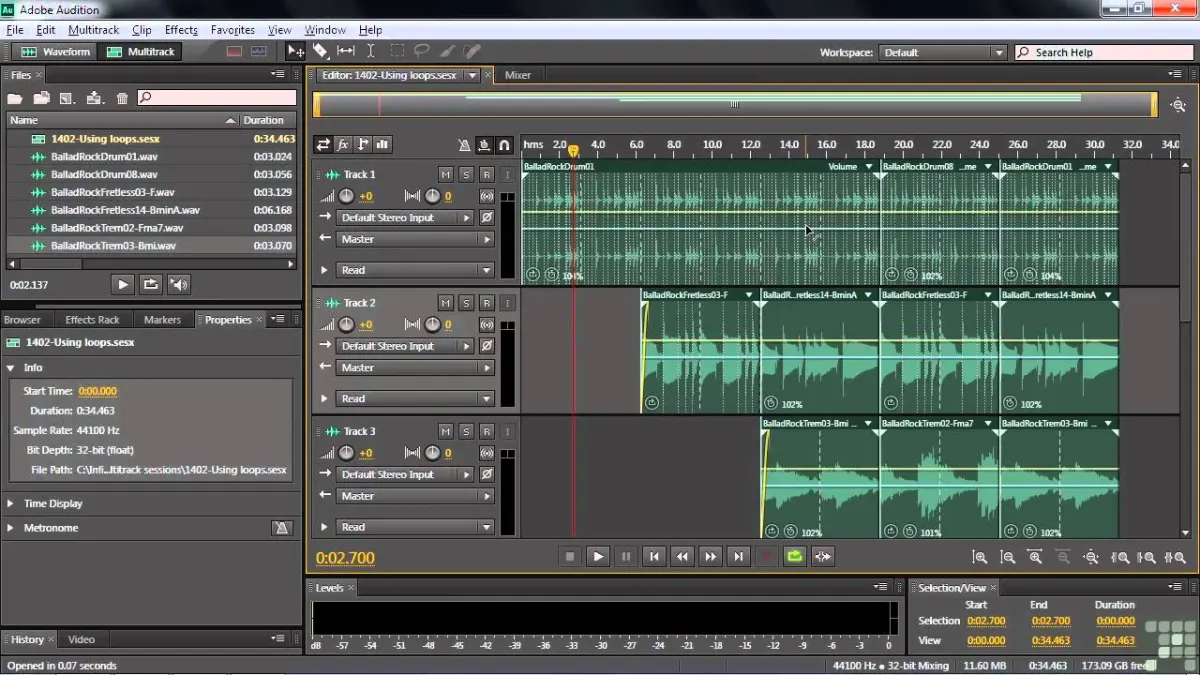
Now when it does that of course they'll appear inside the files panels. Let’s go to our files panel and see exported files. We know which files they are because they have the complete name of the session listed there.
After exporting your stems you can then upload your zip file here at Audiomixingmastering.com/upload for professional online mixing and mastering services for an affordable rate.
Listen to our before and after samples here at Audiomixingmastering.com/samples to hear why we are #1 worldwide.
From Audition to a Finished Mix
Once Adobe Audition has rendered your stems, professional mixing services handle the rest: balance, polish, and a master ready for release. Zip the files, keep the names consistent, and upload.