Introduction
Analog equipment and recording techniques can imbue your musical compositions with a unique and coveted warmth and personality.
However, seamlessly incorporating it into your digital workflow can pose a challenge. In this article, we'll guide you through the process of integrating analog gear with Logic Pro, providing step-by-step instructions, best practices, recommended equipment, and insider tips and tricks.
To simplify the process, let's approach it with this in mind: if you've ever connected a microphone to your audio interface for recording in Logic Pro, you already have the basic knowledge.
Just like how the microphone is plugged into your audio interface, allowing your voice to be recorded directly into the DAW, analog gear operates on the same principle.
The only difference is that instead of your voice, the sound being recorded is generated by an external synthesizer or other analog equipment.
So, without further ado, let's dive in.
Table Of Contents
- Introduction
- Equipment Needed
- Logic Pro I/O Utility Plugin
- Which Type Of The I/O Utility Plug-in should you use?
- Using analog gear to process a digital track
- Setting the Input and Output in the I/O Utility Plugin
- Printing Fx Returns in Logic Pro Using the I/O Utility Plugin
- Using a Single Piece of Gear
- Using Multiple Pieces of Gear
- Tips and Tricks
- What are the benefits of using analog gear with Logic Pro?
- Recommended gear to start with with a limited budget
- Conclusion
Equipment Needed
Now, let's discuss the equipment you'll need to get started. To use analog gear with Logic Pro, you'll need the following items:
- An audio interface equipped with at least one extra input and output besides the ones used for your studio monitors that can handle the analog signal from your gear.
- An analog device, such as a synthesizer or drum machine.
- A cable to connect your analog device to the audio interface.
By having these components in place, you'll be able to integrate your analog gear into your digital workflow with Logic Pro.
Logic Pro I/O Utility Plugin
Accessing the I/O Utility Plugin in Logic Pro is just as easy as accessing any other plugin. You can find it under the UTILITIES menu, under the I/O option. There are three different variations of the I/O Utility Plugin in Logic Pro, as follows:
Mono - For mono tracks, you'll have the option to choose either the Mono or Mono to Stereo version of the plugin.
Mono to Stereo - This version is designed for mono tracks that need to be converted to stereo.
Stereo - For stereo tracks, the only option available will be the stereo version of the I/O Utility Plugin.
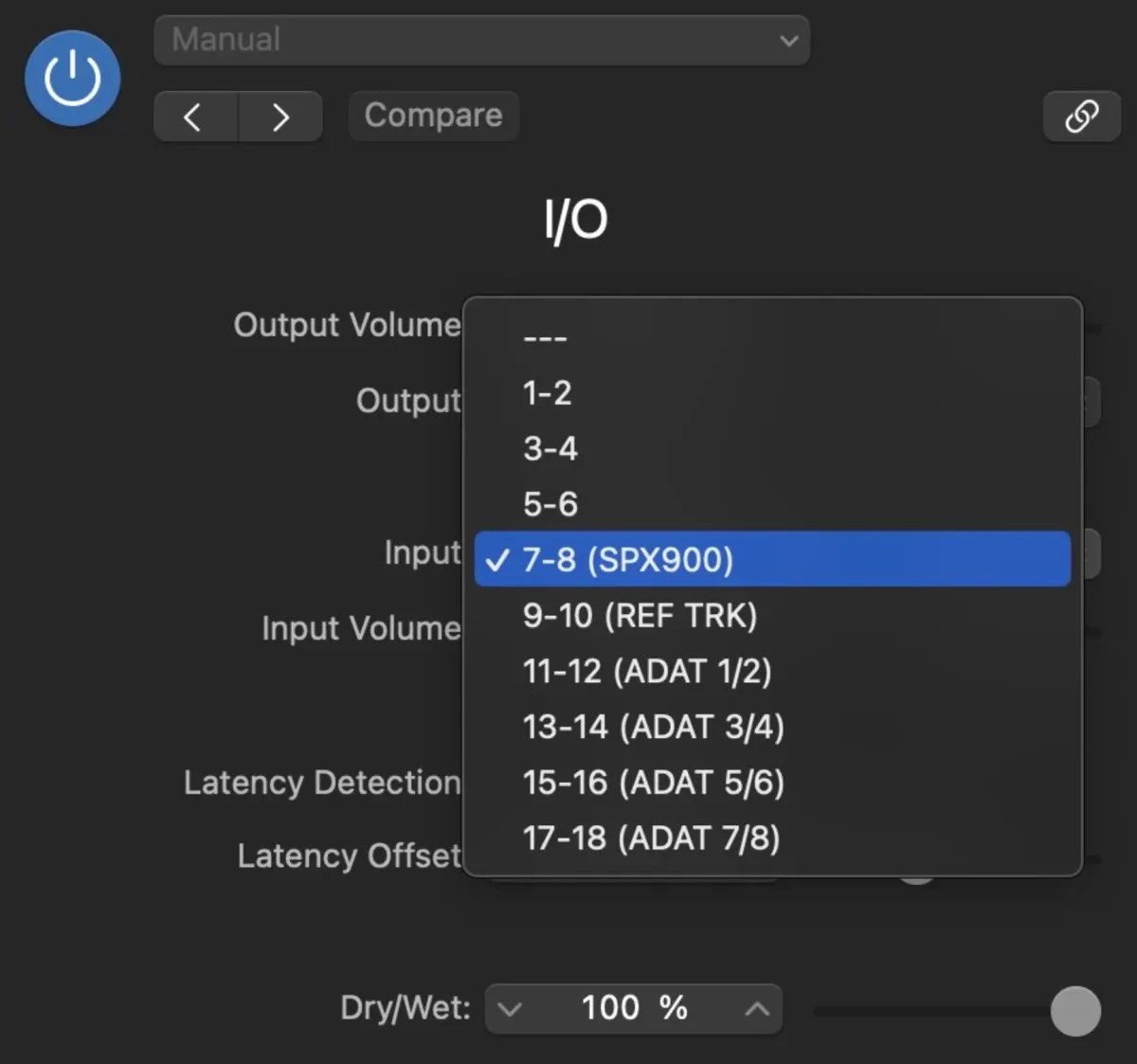
The Mono to Stereo version is illustrated in the accompanying image.
Which Type Of The I/O Utility Plug-in should you use?
The choice of I/O Utility Plugin to use in Logic Pro depends on your desired outcome and the analog gear you are working with. Here are a few different scenarios to help guide you:
Mono I/O Utility Plugin - Use this version when sending audio to a mono FX unit, such as a single channel compressor or EQ. If you are sending audio to a stereo reverb unit but only want a mono reverb return, you would also use the mono version. In this case, you would send the audio to the left or mono input of the reverb, and the left or mono output of the reverb would return to Logic.
Mono to Stereo I/O Utility Plugin - Use this version if you have a mono source but want a stereo FX return. For example, if you have a reverb unit with a mono input but stereo outputs, you would use the Mono to Stereo I/O plugin to achieve a stereo reverb return.
Stereo I/O Utility Plugin - Use this version when sending a stereo source and expecting a stereo return.
Dual Mono I/O Utility Plugin - There is not a dedicated Dual Mono version of the I/O plugin, but you can still achieve this by using a workaround. If you want to send drum overheads to a stereo reverb unit and have the left and right overheads on separate tracks, you have two options.
a. In the first example, you can keep the overhead returns on separate tracks. You would send the left overhead to the left input on the reverb unit, and the left output would return to Logic. Both left and right overheads would use the mono I/O plugin.
b. In the second example, you can combine the reverb into a single track by sending the left and right overhead tracks to a buss and inserting a stereo version of the I/O plugin.
Using analog gear to process a digital track.
Using analog gear to process a digital track in Logic Pro involves routing the digital audio signal through the analog gear and then back into Logic Pro. Here is one way to do this in Logic Pro:
- Connect the output of your digital audio source to the input of your analog gear using a cable.
- Connect the output of the analog gear to an input on your audio interface.
- In Logic Pro, create a new audio track and select the input on your audio interface that is connected to the analog gear as the input source.
- Record-enable the audio track and press record to capture the audio signal that has been processed by the analog gear.
- After recording, you can use the audio clip that has been recorded to replace the original digital audio source in your project.
You can also use the same process to route the digital audio signal through multiple analog gear in series or parallel, using different effects and settings on each device.
It's important to note that when using analog gear to process digital audio, it's recommended to use a high-quality audio interface to minimize noise and distortion, and to keep the gain levels low. Also, you can use an external mixer to adjust the levels and effects of your analog gear before it hits Logic Pro. This will ensure that your productions maintain the highest audio quality possible.
Setting the Input and Output in the I/O Utility Plugin:
When choosing an input and output source in the I/O Utility plugin, only available options will appear in the drop-down menus. This is determined by the capabilities of your audio interface, and the more inputs and outputs it has, the more routing options you will have.
Printing Fx Returns in Logic Pro Using the I/O Utility Plugin
The I/O plugin is designed to be used with outboard gear during mixing. However, if you're using an outboard compressor for your vocal track, but want to use the same compressor for the bass line and don't have multiple compressor units, you'll need to print out FX returns to free up the outboard gear for more tracks.
Using the I/O Utility Plugin
- Add the I/O plugin as normal, but do not set the Input source or Ping.
- Create a new track and set its input to the return of your outboard gear.
- Arm the track and record.
- You will now have the return of your FX unit on a new track.
- Adjust the new track to line it up with the original by manually aligning the waveforms.
Without the I/O Utility Plugin
- Select the output of the track you want to send to outboard gear and set it to the output that your outboard is patched into.
- Create a new track and set its input to the return of your outboard gear.
- Arm the track and record.
- Time-align the two tracks by manually aligning the waveforms.
Using a Single Piece of Gear
Integrating Outboard Gear into a Studio Setup is straightforward, whether using one piece or multiple pieces of gear.
For a single piece, the signal runs from the audio interface to the input of the outboard gear and back to the audio interface after processing.
Using Multiple Pieces of Gear
With multiple pieces of gear, a patch bay facilitates switching between recording different gear and chaining them for serial processing. It's important to note that a rack mount is recommended when using multiple outboard gear for easy storage and organization.

Tips and Tricks
Employ the use of analog summing for a more analog sound.
Analog summing is a technique that involves mixing multiple digital tracks into a single analog signal, resulting in a warmer and more cohesive sound. This can be done by using an analog summing mixer or by using a plugin like the Dangerous 2-Bus. By using analog summing, you can add a touch of analog warmth to your digital productions and enhance the overall sound.
Use analog gear as a parallel processor.
Parallel processing is a technique that involves running a sound through both digital and analog gear to add character and warmth. For example, you can run a track through a digital plugin to shape the sound, and then send it through an analog compressor to add warmth and character. By using analog gear in this way, you can add an extra layer of analog warmth to your digital productions.
Run your tracks through analog gear before recording.
Another way to incorporate analog gear into your Logic Pro setup is by running your tracks through analog gear before recording. This can add warmth and character to your recordings, and give your tracks a more analog sound. You can use analog gear such as preamps, equalizers, and compressors to shape your sound before recording.
What are the benefits of using analog gear with Logic Pro?
Increased warmth and character
One of the biggest advantages of using analog gear is the increased warmth and character it adds to your digital productions. Analog gear is designed to add a certain ‘analog warmth’ to the sound that cannot be achieved with digital gear alone. This warmth is created by the slight inconsistencies in analog gear, which give a sound a more organic and natural feel.
Unique sound
Each piece of analog gear has its own unique characteristics and can add a different flavor to your music. For example, a classic analog synth will sound different from a digital synthesizer and will have a unique character that cannot be replicated with digital tools. This allows producers to create unique and diverse sounds that are not possible with digital gear alone.
Improved Sound Quality
Analog gear is often considered to produce higher-quality sound compared to digital gear. This is because analog gear processes audio signals in a way that is more natural and less mechanical, resulting in a warmer, richer, and more dynamic sound.
Emulates classic gear
Analog gear also allows you to emulate classic gear that was used in the past, such as classic analog synths and tape echo units. This can help to add a vintage feel to your music, giving it a classic and timeless sound.
Recommended gear to start with with a limited budget.
Some good options for affordable analog synthesizers include:
- Korg Volca series: The Korg Volca series offers a variety of affordable and portable synthesizers, such as the Volca Bass, Volca Keys, and Volca FM, that can add a unique warmth and character to your music productions. These synthesizers are easy to use and have a wide range of sound design possibilities.
- Behringer Model D: Behringer Model D is a clone of the legendary Minimoog Model D, it is an authentic reproduction of the original analog synthesizer, with a great sound and a very affordable price.
- MeeBlip anode: MeeBlip anode is a digital-analog hybrid synthesizer that offers a wide range of sound design possibilities. It has a simple interface and is easy to use, making it a great option for beginners.
Analog sound effects devices that can be used with Logic Pro:
- Electro-Harmonix Small Stone: The Electro-Harmonix Small Stone is an affordable and classic phaser pedal that can add a unique and warm modulation to your audio signals. It's simple to use and has a great sound.
- MXR Carbon Copy: The MXR Carbon Copy is an affordable and classic analog delay pedal that can add depth and dimension to your audio signals. It's simple to use and has a great sound.
- Boss BD-2 Blues Driver: The Boss BD-2 Blues Driver is an affordable and classic overdrive pedal that can add warmth and distortion to your audio signals. It's simple to use and has a great sound.
Affordable and effective analog compressors and EQs that can be used with Logic Pro:
- ART Pro VLA II: The ART Pro VLA II is an affordable and versatile compressor that can add depth and dimension to your audio signals. It's simple to use and has a great sound.
- Warm Audio WA-2A: The Warm Audio WA-2A is an affordable and classic optical compressor that can add warmth and character to your audio signals. It's simple to use and has a great sound.
- Behringer EQ700: The Behringer EQ700 is an affordable and classic 7-band graphic equalizer that can add clarity and definition to your audio signals. It's simple to use and has a great sound.
All of these devices are affordable and easy to use, making them great options for someone on a limited budget. They can add a unique character and warmth to your music production and can be used to process and create a wide range of audio signals, including vocals, drums, guitars, and more. They are also small and portable, so you can easily take them with you wherever you go, and integrate them into your digital workflow with Logic Pro.
Conclusion
Incorporating analog gear into your Logic Pro setup can bring a distinct character and warmth to your music compositions. By selecting the appropriate gear and setting it up correctly, you can seamlessly integrate analog equipment into your digital workflow and enjoy its distinct sound. Utilizing the information provided, you can optimize the use of your analog gear and Logic Pro, ultimately leading to the creation of the music you've envisioned.
Beyond Outboard Effects
The same I/O workflow works for instruments too: route MIDI out to a compact analog synthesizer, return its audio through your interface, and Logic treats real analog voices like any software instrument, with none of the latency guesswork.